Zoho Books import invoices CSV error: US tax on item lines

Zoho Books invoice files from Zoho Invoice follow one US tax rule; files from other software follow another, where missing taxes are created on import.
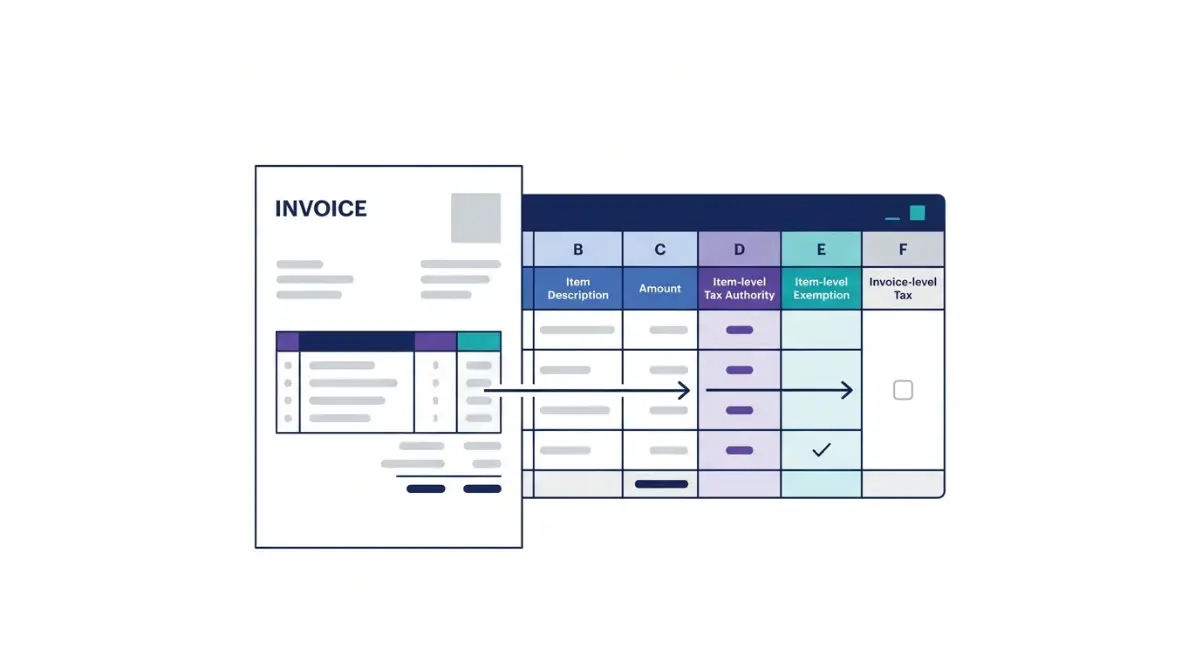
Table of Contents
Vendor pages checked on 23 October 2026.
A Zoho Books US-edition invoice import expects sales tax on each item line. Fill Item Level Tax Authority on every row, fill Item Level Exemption only on exempt rows, and leave all five invoice-level tax columns empty (Zoho’s US import-transaction article).
Those steps were written for invoices exported from Zoho Invoice. A file from other accounting software falls under a different US rule, and the Free plan includes no tax rates at all (US plan comparison).
Move sales tax to the item lines
Set up every tax authority and exemption the file names before you edit a single cell, then work through it in this order.
- In Settings, open Taxes under Taxes & Compliance. Add each authority under Tax Authorities, with its state, and each exemption reason under Tax Exemptions, with its Type set to Customer or Item (US taxes help page).
- Add the two item-level columns if the file lacks them.
- Fill the authority column on every row. Zoho’s article says this column marks whether the item is taxable and which authority applies to it.
- Fill the exemption column only on rows that are exempt. Zoho says those rows then import as non-taxable, with the exemption attached.
- Clear the five columns that start with Invoice Level: Tax, Tax Type, Tax %, Tax Authority and Exemption.
- In Sales, open Invoices, click the More icon and choose Import Invoices. Upload the file as CSV, TSV or XLS (US Import Data help).
- On Map Fields, map both item-level columns and map Item Level Tax to the existing rows, as the article directs. Check the Preview page, then click Import.
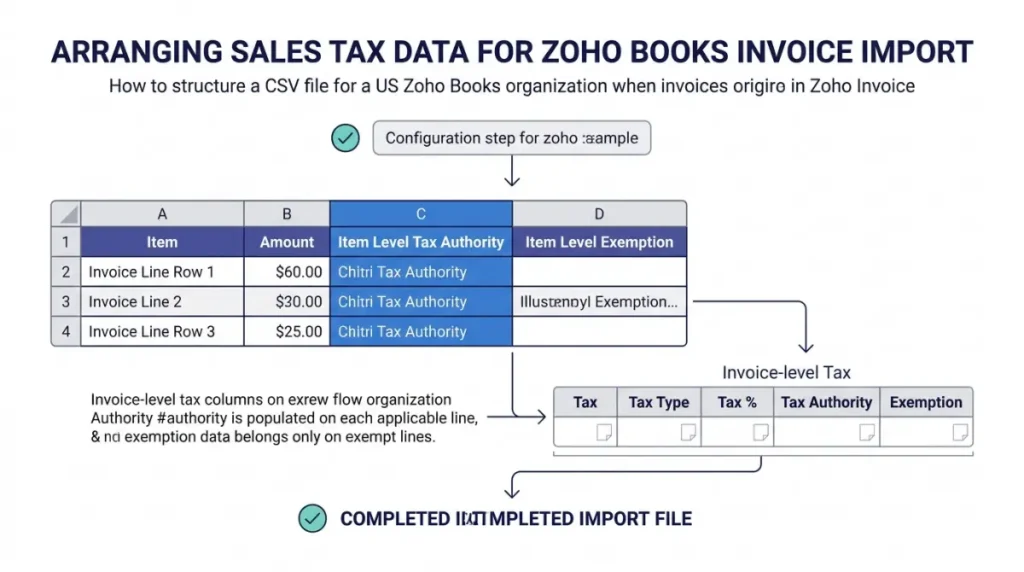
Start with three rows before the whole file. Zoho’s pages don’t ask for a test batch, but three rows keeps a wrong mapping to three invoices.
Editing a tax rate that existing transactions already use brings up a prompt asking whether to update those transactions too.
Does this fix apply to your file?
If your organization’s country is the United States and the invoices came out of Zoho Invoice, the steps above are Zoho’s documented route.
| Your situation | What Zoho documents | Zoho US page |
|---|---|---|
| Invoices from Zoho Invoice | Authority on every line, exemption on exempt lines, invoice-level columns empty | Import-transaction article |
| Files from other accounting software | Taxes missing from Zoho Books are created on import; several taxes on one transaction become a new tax group | Migration guide |
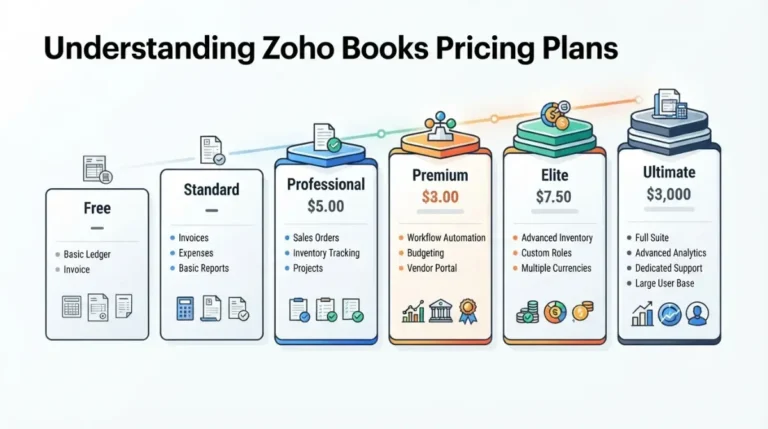
| Free plan | No tax rates, tax groups or exemptions; these start on Standard | US plan comparison |
| Organization outside the US | The Taxes module differs by country edition | Migration guide |
Source: the Zoho US help and pricing pages linked in each row.
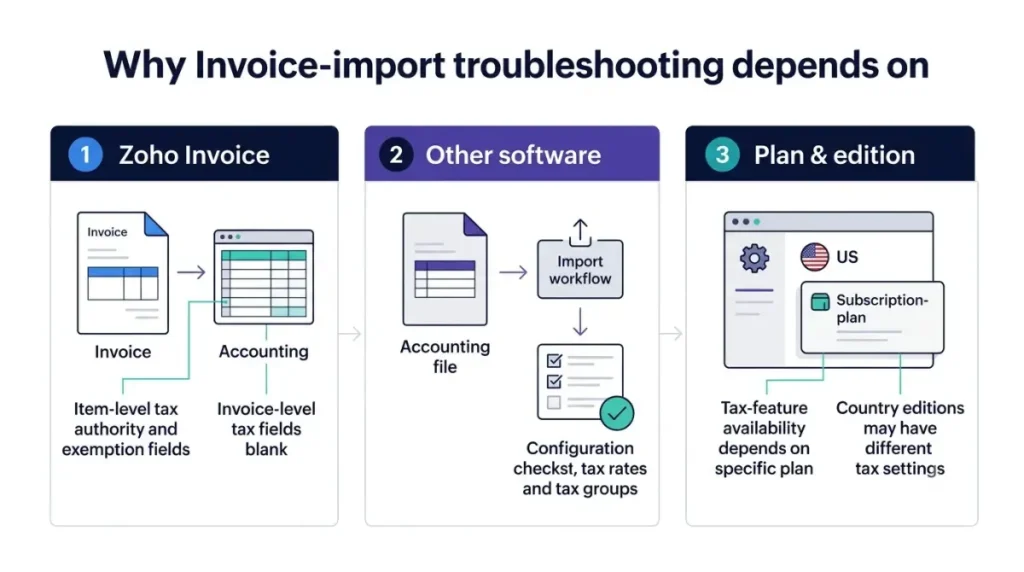
For a file from other software, the migration guide’s rule covers tax rates and tax groups. It is silent on whether an unknown tax authority or exemption gets created the same way, so set those up in Settings first and let a three-row import show the result.
On Free, nothing in Zoho’s help explains what an import does with tax columns, and tax rates start on Standard. The upgrade itself is set out in which Zoho Books plan adds sales-tax tracking.
Moving a whole set of books has its own import order, laid out in the QuickBooks-to-Zoho Books migration steps.
Ask your accountant: which of your sales are exempt, and which exemption reason belongs on each one. Zoho Books stores the reason you type on the row and doesn’t judge whether the sale qualifies.
Four reasons a tax column fails
Four causes turn up across Zoho’s import pages.
The first is tax sitting at invoice level, which the US import-transaction article rules out once tax is set per line.
A tax named in the file that doesn’t exist in the organization is the second cause, and tax columns left unmapped on Map Fields are the third. Both are error triggers in Zoho’s India-edition import FAQ. Partway down the US article, the exemption column also picks up a second name, with “Tax” added before “Exemption”; map whichever version the Map Fields page offers.
The fourth is following another edition’s instructions. The India FAQ gives “Tax Group” and “ItemAmount” as Tax Type values for GST, India’s goods and services tax, and neither value has a place in a US file.
Still failing after a three-row test
Sales Tax Automation changes which authorities Zoho Books uses. Once it is on, any existing authority you didn’t map during setup stops being used for new transactions (US Sales Tax Automation guide).
The guide is silent on how imported invoices are taxed under automation. After an import, open Reports and select Exception Report under Activity. It lists transactions calculated with incomplete tax details or with tax applied by hand.
None of the US help pages say whether importing the same rows again after a partial import creates duplicates, so take the rows that went in out of the file before the next attempt.
Back up first: export the invoices that already imported before you delete any of them or re-run the file. Exporting your Zoho Books data covers the formats available.
What to send Zoho’s US support
Stop editing the file once a three-row import fails with tax names that match Settings letter for letter. The US help pages carry no list of tax import errors, so the next move belongs to the support desk.
Email support.usa@zohobooks.com with:
- the three-row file
- the error message, copied word for word
- your plan
- whether tax automation is turned on
Zoho lists +1 844 316 5544 for US phone support, Monday to Friday, 9am to 9pm ET (help page footer). On the US plan comparison, Free plans get email only, with chat and voice from Standard; Zoho Books support hours by plan covers the rest.