How to Cancel Invoice Simple on Web and Android
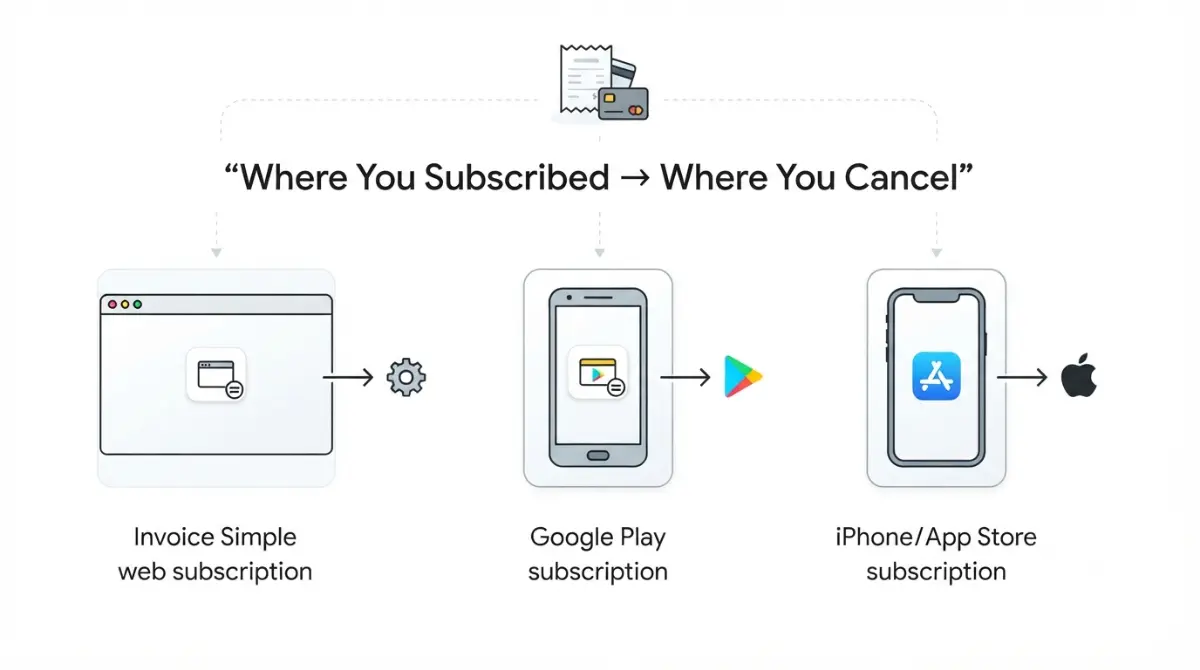
Table of Contents
Where you paid decides where you cancel. Web subscribers log in to the Invoice Simple web app, open Settings and choose Cancel Subscription. Google Play subscribers cancel in Play’s Subscriptions screen, because uninstalling the app does not stop billing (both retrieved 24 September 2026). Access runs to your renewal date, and Invoice Simple’s Terms, last modified 1 June 2026, allow no refunds for partial use.
Where you subscribed decides where you cancel
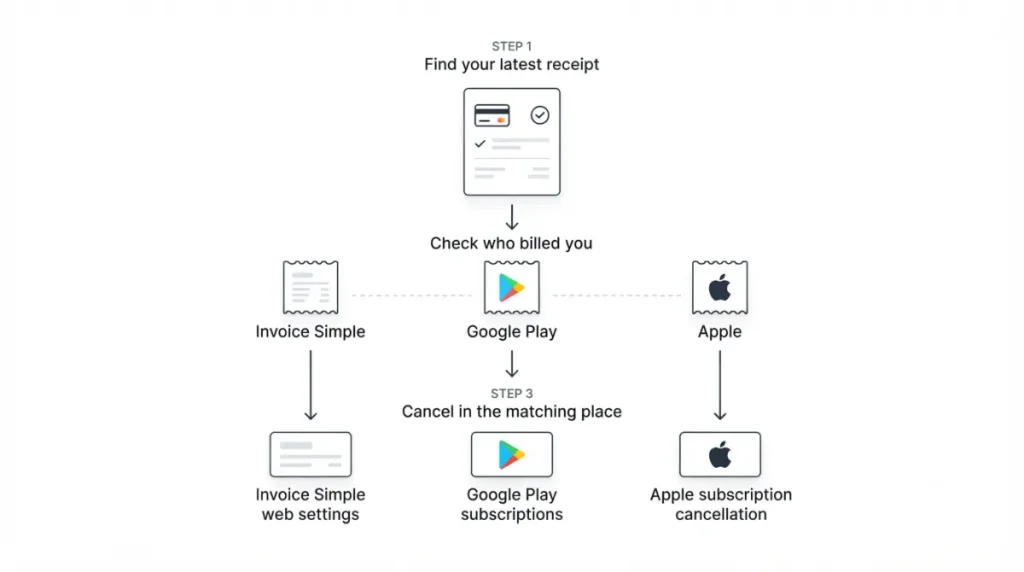
Invoice Simple subscriptions are billed through three channels, and each one has its own cancel screen. Find the receipt email for your last payment before you change any setting.
- Receipt from Invoice Simple: you were billed directly, so cancel in the web app (next section).
- Receipt from Google Play: Google holds the subscription, so cancel in Play (the section after).
- Receipt from Apple: cancel through Apple’s cancellation page. Invoice Simple’s help centre, dated 20 January 2026, routes App Store subscribers there too.
If a price rise is what sent you here, our record of Invoice Simple’s price increases has the dated figures.
How to cancel Invoice Simple on the web
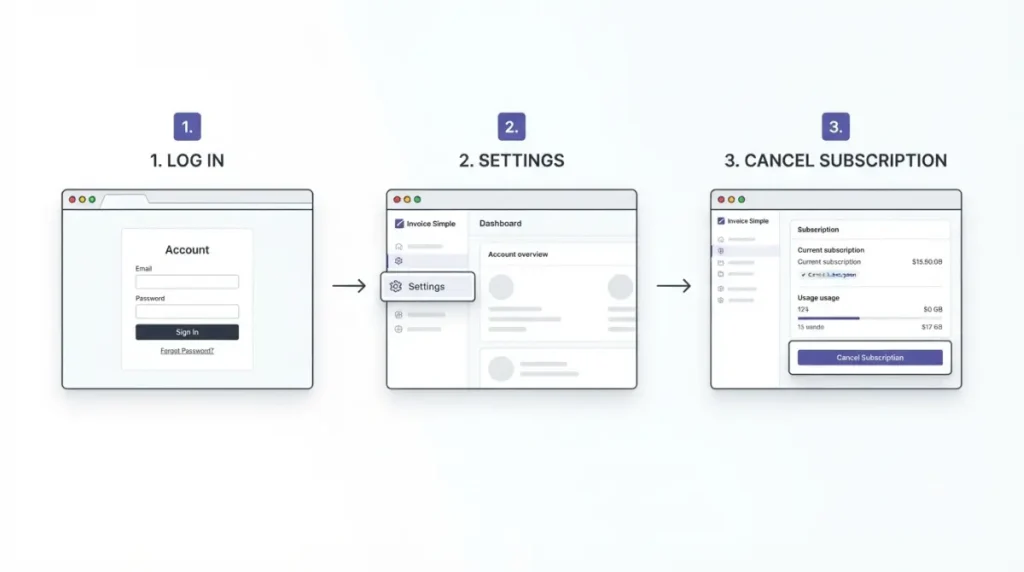
Invoice Simple’s cancellation help article, dated 20 January 2026, gives a self-serve path for subscriptions billed by Invoice Simple.
🛟 Back This Up First: Export your invoices before step 3. Invoice Simple’s Terms allow account data to be deleted after an account ends; the export path is in the section on your invoices below.
- Log in to the Invoice Simple web app with your Invoice Simple login.
- Open Settings.
- Select Cancel Subscription.
If Cancel Subscription is missing
The vendor’s article documents this option only for subscriptions bought directly. Google Play and App Store purchases cancel in those stores, as the first section explains.
Some third-party guides still say direct subscribers must email support to cancel. The vendor’s January 2026 article describes the self-serve path above instead.
How to cancel Invoice Simple on Android
If Google Play billed you, Invoice Simple’s help centre (20 January 2026) says to cancel through Google, not inside Invoice Simple. Google’s cancellation steps, retrieved 24 September 2026, are:
- On your Android device, go to subscriptions in Google Play.
- Select the Invoice Simple subscription.
- Tap Cancel subscription.
- Follow the on-screen instructions.
Can’t find the subscription?
Google notes that a subscription may sit on a different Google account. Switch accounts in Play and check again.
If none of your Google accounts shows it and your receipt came from Invoice Simple, use the web path in the previous section.
What cancelling does not do
Four mistakes keep a subscription billing, or cost money after cancelling.
Uninstalling doesn’t cancel
Google’s help page, retrieved 24 September 2026, states that uninstalling an app does not cancel its subscription. Removing Invoice Simple from your phone stops nothing.
Deleting your account isn’t cancelling
Invoice Simple’s account-deletion article, dated 30 November 2023, says to cancel the subscription first. It also says access continues until your next renewal date.
No money back for the rest of the term
Invoice Simple’s Terms, last modified 1 June 2026, make fees non-refundable for the whole term. They rule out refunds for partial use, for plan changes and for unused months.
⚠️ This Costs You: Cancel the day after an annual renewal and you have still paid for that full year. You keep access until the term ends, but the money does not come back under the Terms.
In India? Watch the pre-renewal hold
Google’s help page, retrieved 24 September 2026, says Play may place an authorization hold up to 5 days before renewal in India or Brazil, against 48 hours elsewhere. A hold is not a charge. Still, cancelling a week before renewal keeps one from appearing at all.
If you are still on the free trial, our Invoice Simple free trial page covers that timing separately.
What happens to your invoices after you cancel
Invoice Simple’s own documents disagree on this point, so export before you cancel.
🛟 Back This Up First: Run the invoice and expense exports below while your plan is active. Save the files somewhere outside Invoice Simple.
| Invoice Simple source | What it says about your data | Date |
|---|---|---|
| Help: what happens to my data | Invoices, estimates and client information stay stored after cancelling | Article dated 19 Nov 2025; retrieved 24 Sep 2026 |
| Terms of Service, section 2.1 | After termination, Invoice Simple may deactivate the account and delete its data | Last modified 1 Jun 2026; retrieved 24 Sep 2026 |
The Terms are the later document and the binding one, so plan on the stricter reading.
Export before you cancel
Invoice Simple’s export article, dated 22 July 2025, puts Export Invoice Summary in Settings under the Invoice header. You pick a date range and a format: PDF, XLSX or CSV. PDF exports cover two months per run; Export Expense Summary works the same way.
The help centre does not say whether export stays available after a paid plan ends. We could not confirm it, so export first.
Refunds, and what to do after cancelling
Refund routes depend on who billed you. The Terms limits described in the previous section still apply.
Web purchases: the support email route
Invoice Simple’s refund article, dated 22 February 2024, asks for an email to support@invoicesimple.com. Put “Cancellation Request” in the subject, and include your account email and a screenshot of your receipt. In-app chat is the alternative.
Google Play purchases: the 48-hour rule
Invoice Simple sends Play buyers to Google. Google’s subscription refund policy, retrieved 24 September 2026, handles requests within 48 hours of purchase and sends later ones to the developer.
Inside 48 hours, request the refund through Google; Google says a decision usually takes a day and can take up to four. After 48 hours, use Invoice Simple’s email route above.
Coming back later
Invoice Simple’s cancellation article (20 January 2026) says you can reactivate by buying a new subscription. Plan prices are on Invoice Simple’s pricing page and in our dated Invoice Simple pricing record. Before resubscribing, weigh whether Invoice Simple is worth keeping against what it really costs.
🧾 Not Tested: We did not cancel an Invoice Simple subscription ourselves. That needs an active paid plan, which we do not hold. Every step above comes from Invoice Simple’s and Google’s published help pages retrieved 24 September 2026. No logged-in screen is shown or described.
Frequently asked questions
1. Does deleting the Invoice Simple app cancel my subscription?
No. Google states that uninstalling an app does not cancel its subscription. Cancel Invoice Simple in Google Play or the web app.
2. Can I cancel Invoice Simple by email?
Invoice Simple’s January 2026 help article describes self-serve cancellation in web Settings. The support email route covers refund requests.
3. Do I keep Invoice Simple access after cancelling?
Yes. Invoice Simple’s help centre says access continues until the date of your next subscription renewal.
4. Does Invoice Simple refund unused months?
No. Invoice Simple’s Terms, last modified 1 June 2026, allow no refunds for partial use or unused months.
5. How do I get an Invoice Simple refund on Google Play?
Request it from Google within 48 hours of purchase. After that, Google says to contact the developer, Invoice Simple.
6. Does cancelling Invoice Simple delete my invoices?
Invoice Simple’s November 2025 help article says no, but its June 2026 Terms allow deletion after termination. Export first.
7. Is cancelling Invoice Simple the same as deleting my account?
No. Invoice Simple says to cancel the subscription first, then delete the account separately if you want it removed.
8. I paid for Invoice Simple on an iPhone but use Android now. Where do I cancel?
Where you paid. Apple-billed Invoice Simple subscriptions cancel through Apple, not Google Play or the Invoice Simple web app.
Before you close this tab
Cancel where you paid, either in Invoice Simple’s web Settings or in Google Play. Export your invoices first, because the June 2026 Terms allow account data to be deleted after an account ends. If Google Play charged you within the last 48 hours, request that refund from Google now.